
Building a website used to require learning complicated coding languages like HTML, CSS, and JavaScript. For many beginners and small business owners, that made launching a website feel intimidating.
The good news? You no longer need to know how to code to create a professional website.
Today, tools like WordPress and visual page builders allow anyone to design a modern website using simple drag-and-drop features. One of the most powerful tools for this is Divi by Elegant Themes, which makes building websites incredibly beginner-friendly.
In this guide, I’ll walk you through building a WordPress website without coding, step by step, using Divi.
Whether you’re a freelancer, small business owner, blogger, or someone who simply wants to create an online presence, this guide will help you launch your website faster and easier.
Why WordPress Is the Best Platform for Beginners
Before we jump into the steps, let’s quickly talk about why WordPress is the best platform to use.
WordPress powers over 40% of all websites on the internet, which means it’s trusted by businesses, creators, and developers worldwide.
Here are a few reasons why beginners love WordPress:
1. Beginner Friendly
You don’t need coding knowledge. With visual builders like Divi, you can design pages by simply dragging and dropping elements.
2. Flexible and Scalable
WordPress works for almost any type of website:
- Blogs
- Business websites
- Portfolio sites
- Online stores
- Membership sites
3. SEO Friendly
WordPress is built with SEO in mind and works well with plugins like RankMath or Yoast to help your website rank in Google.
4. Thousands of Themes and Plugins
You can easily add features like contact forms, booking systems, or online payments without writing code.
Now let’s move into the actual process of building your website.
Step 1: Get a Domain Name and Hosting
Your domain name is your website address (for example: yourwebsite.com).
Your hosting provider is where your website files live online.
When choosing a domain name, keep these tips in mind:
- Keep it short and easy to remember
- Avoid numbers and hyphens
- Make it brandable
For hosting, choose a provider that supports one-click WordPress installation. Most reliable hosting companies offer this feature.
Once your hosting account is ready, you can install WordPress.
Step 2: Install WordPress
Most hosting companies make this step extremely simple.
Usually, the process looks like this:
- Log in to your hosting dashboard
- Find WordPress installer
- Click install
- Enter your domain name
- Create your admin username and password
After installation, you can access your WordPress dashboard by visiting:
yourdomain.com/wp-admin
This is where you will manage your website.
Step 3: Install the Divi Theme
Now comes the fun part — building your website visually without coding.
This is where Divi by Elegant Themes becomes incredibly powerful.
Divi is a drag-and-drop WordPress theme and visual page builder that allows you to design your website directly on the screen.
Instead of editing code, you simply click elements and customize them visually.
To install Divi:
- Download the Divi theme from Elegant Themes
- Go to Appearance → Themes in WordPress
- Click Add New
- Upload the Divi theme file
- Activate the theme
Once activated, you’ll see the Divi Visual Builder, which allows you to build pages visually.
Step 4: Understand How the Divi Builder Works
Divi works using three main building blocks:
Sections
Sections are the largest building blocks on a page. They divide your page into different areas.
Examples:
- Hero section
- About section
- Services section
- Contact section
Rows
Rows sit inside sections and allow you to choose layout structures like:
- 1 column
- 2 columns
- 3 columns
- 4 columns
Modules
Modules are the actual content elements you add to the page.
Some popular modules include:
- Text
- Image
- Button
- Video
- Testimonials
- Contact Form
The best part? You simply drag and drop these modules to build your design.
No coding required.
Step 5: Choose a Website Layout
Divi comes with hundreds of pre-built website layouts.
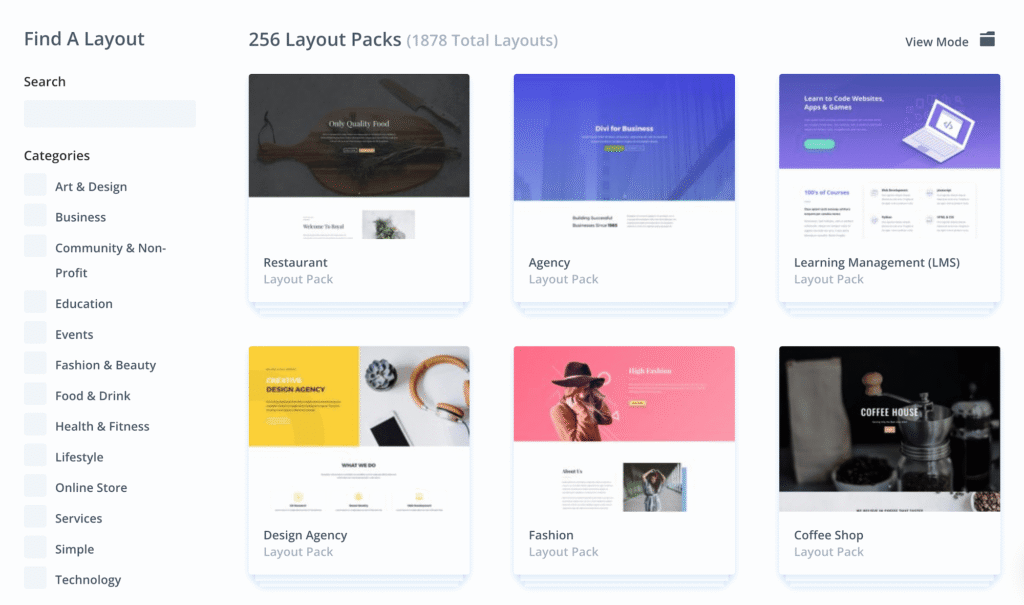
This makes building your website even faster.
Instead of starting from scratch, you can import a professional layout and customize it to match your brand.
Some popular layout categories include:
- Business websites
- Online courses
- Marketing agencies
- Blogs
- Portfolio websites
To load a layout:
- Create a new page
- Click Use Divi Builder
- Select Browse Layouts
- Choose a layout you like
- Import it
Within seconds, your page will look professionally designed.
Step 6: Customize Your Website
Now you can start customizing your website.
With Divi, you can visually change almost everything.
You can edit:
- Text content
- Colors
- Fonts
- Images
- Buttons
- Spacing
- Backgrounds
Simply click any element and modify it inside the settings panel.
For example, if you want to change a headline:
- Click the text module
- Edit the text
- Adjust font size
- Change color
You’ll see the changes instantly on screen.
Step 7: Create Important Website Pages
Every website should include a few essential pages.
Here are the most important ones:
Home Page
Your homepage is the first impression visitors will have of your business.
Include:
- Clear headline
- What you offer
- Benefits
- Testimonials
- Call to action
About Page
This page helps visitors trust you.
Share:
- Your story
- Your mission
- Your experience
Services Page
Explain what you offer and how you help customers.
Include:
- Service descriptions
- Pricing or packages
- Benefits
Contact Page
Make it easy for visitors to contact you.
Add:
- Contact form
- Email address
- Phone number
- Social media links
Divi includes a built-in contact form module, so you don’t need additional plugins.
Step 8: Optimize Your Website for SEO
Building your website is only part of the process.
You also want people to find it on Google.
Here are a few SEO tips to follow:
Use Clear Page Titles
Each page should target a specific keyword.
Example:
- How to Build a WordPress Website
- WordPress Website for Small Business
- WordPress Website Without Coding
Write Helpful Content
Google favors content that provides real value to readers.
Focus on:
- Answering questions
- Solving problems
- Providing step-by-step guidance
Optimize Images
Large images slow down your website.
Compress images before uploading and add descriptive ALT text for SEO.
Install an SEO Plugin
Plugins like RankMath can help optimize your:
- Meta titles
- Meta descriptions
- Sitemap
- Schema markup
These improvements help search engines better understand your content.
Step 9: Make Your Website Mobile Friendly
More than half of internet traffic now comes from mobile devices.
The good news is Divi automatically creates responsive websites, but you should still check how your pages look on mobile.
Inside Divi, you can preview:
- Desktop view
- Tablet view
- Mobile view
You can also adjust spacing, font sizes, and layouts specifically for mobile devices.
This ensures your website looks great everywhere.
Step 10: Launch Your Website
Once everything looks good, it’s time to launch your site.
Before launching, double-check these items:
✔ All pages are complete
✔ Links are working
✔ Contact form works
✔ Images load correctly
✔ Mobile view looks good
Once you’re satisfied, your website is ready for visitors.
Congratulations — you’ve just built a website without writing a single line of code.
Why Divi Is One of the Best No-Code Website Builders
There are many page builders available today, but Divi stands out for several reasons.
Beginner Friendly
Divi’s visual editor makes website building simple even for complete beginners.
Huge Design Library
Divi offers hundreds of ready-to-use layouts, saving hours of design work.
Drag-and-Drop Builder
You can design your website visually instead of dealing with complicated coding.
Powerful Customization
Divi allows full design control while still being beginner-friendly.
Lifetime Updates
Elegant Themes constantly updates Divi with new features and improvements.
For freelancers and business owners, Divi can save hundreds of hours of development time.
Final Thoughts
Building a website no longer requires technical skills or expensive developers.
With tools like WordPress and Divi, anyone can create a professional website in just a few hours.
The key steps are simple:
- Get a domain and hosting
- Install WordPress
- Install Divi
- Import a layout
- Customize your pages
- Optimize for SEO
- Launch your website
Once your website is live, you can start growing your traffic through blogging, SEO, and digital marketing.
If you’re serious about creating a website without coding, Divi is one of the best tools available today.
Build Your WordPress Website With Divi Today
If you want an easy way to build a professional WordPress website without coding, I highly recommend using Divi.
Divi makes website creation simple with its powerful drag-and-drop visual builder, pre-made layouts, and beginner-friendly design tools.
👉 Start building your website with Divi here: Divi by Elegant Themes
With Divi, you can launch a beautiful website faster — even if you’ve never built one before.